

Files & data in chat
Chat isn’t limited to what you can type. Attach a file and the model can read it; turn on agentic mode and it can run code against your data — all without your files leaving the workspace.
Attaching a file
Section titled “Attaching a file”Use the attach (paperclip) control in the composer to add a file to the conversation, then ask about it: “summarize this,” “what changed between these two versions,” “pull the totals out of this spreadsheet.” Catalyst handles common formats — PDFs, Word documents, PowerPoint, spreadsheets (CSV and Excel), JSON, and plain text.
Behind the scenes, documents are converted to clean text the model can read accurately, so you get answers grounded in the actual content rather than a rough guess.
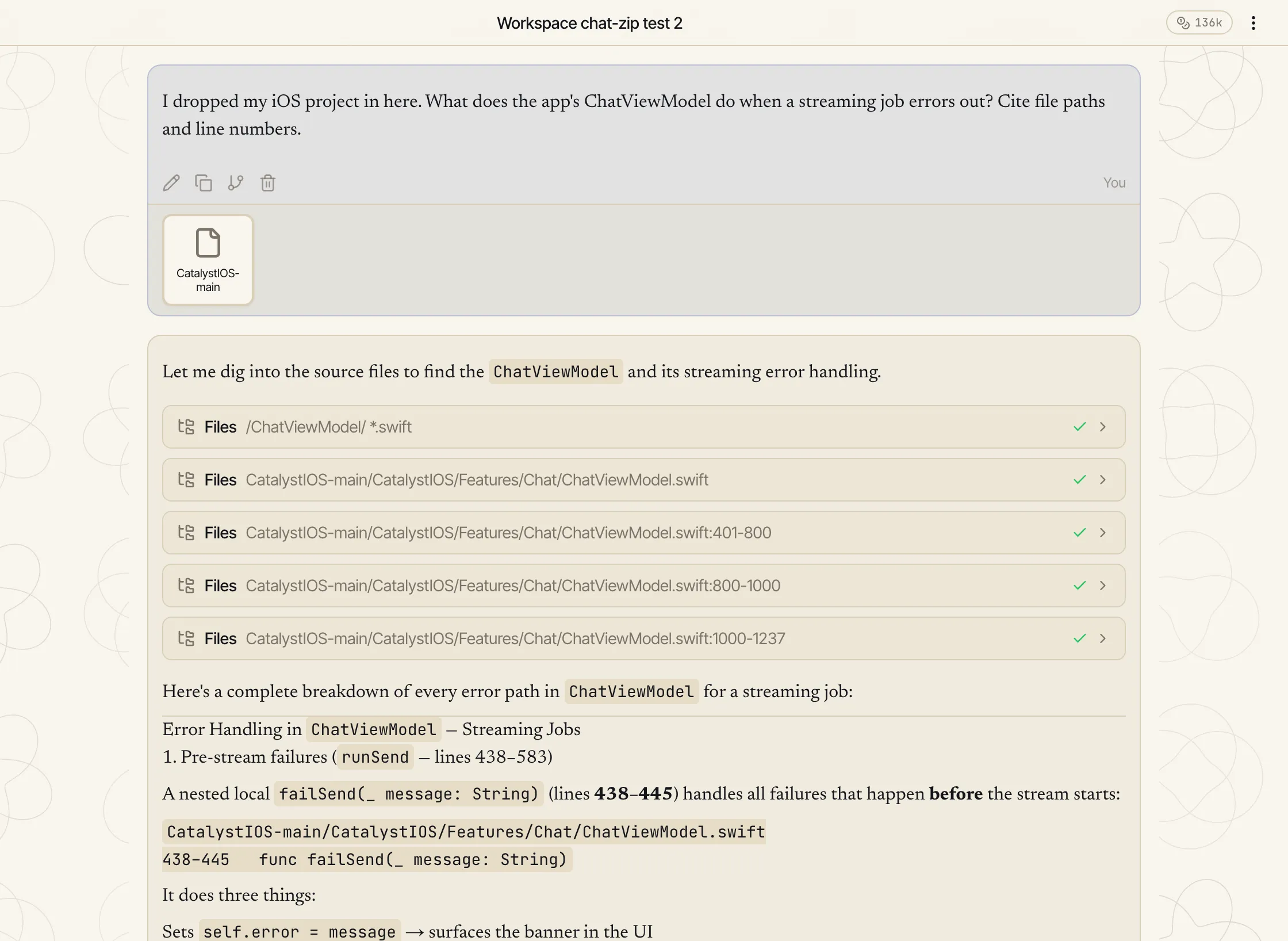
Drop in a zip
Section titled “Drop in a zip”An archive is a special case: drop a .zip into the composer and Catalyst unpacks it
into a folder of files for that conversation rather than treating it as one opaque blob. The
model can then browse the tree with the files tool — list folders, read a file with line
numbers, or grep across everything with a regular expression — and answer with real paths and
line numbers instead of guesses.
Unpacking is selective: version-control, dependency and build folders, secrets like .env
files and private keys, binaries and media are all left out, and files over 2 MB inside the
archive are skipped. The unpacked tree is also mounted read-only in the Python sandbox at
./inputs/.
This works even better as a project, where the same tree stays
available to every chat in it — that page covers the unpacking rules, the limits, and the
files tool in full.
Running code on your data
Section titled “Running code on your data”In agentic mode the model can run Python in a private sandbox to work with your data directly — load a spreadsheet, clean it, compute something, draw a chart. The code and its output appear inline as an artifact, and any files it produces are available to download.
The sandbox is isolated per conversation: it’s a scratch space that exists for your session, not a shared environment, and the uploaded files stay on the workspace rather than being sent out to a third party.
Connecting a live system
Section titled “Connecting a live system”For working with live data rather than a one-off upload, connect the system as an integration (MCP) so the model can query it directly — your database, internal API, or knowledge base, exposed as tools the model can call.