

Z-Image — fast, free default
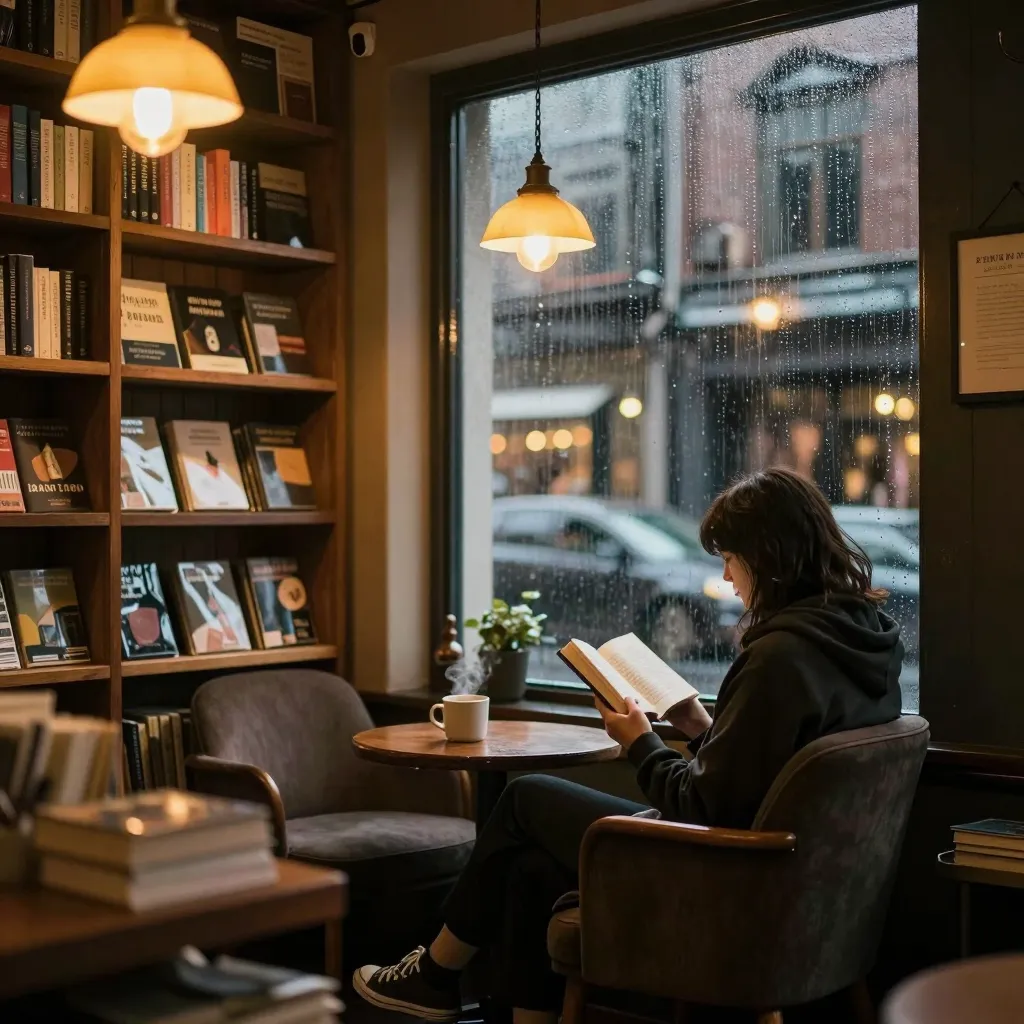
A quick, no-cost general-purpose model. The default, and a great first pass for almost anything.
Need a picture? Just ask for one. In an agentic chat, describing the image you want is enough — Catalyst generates it and drops it straight into the reply, ready to use in the rest of your work.
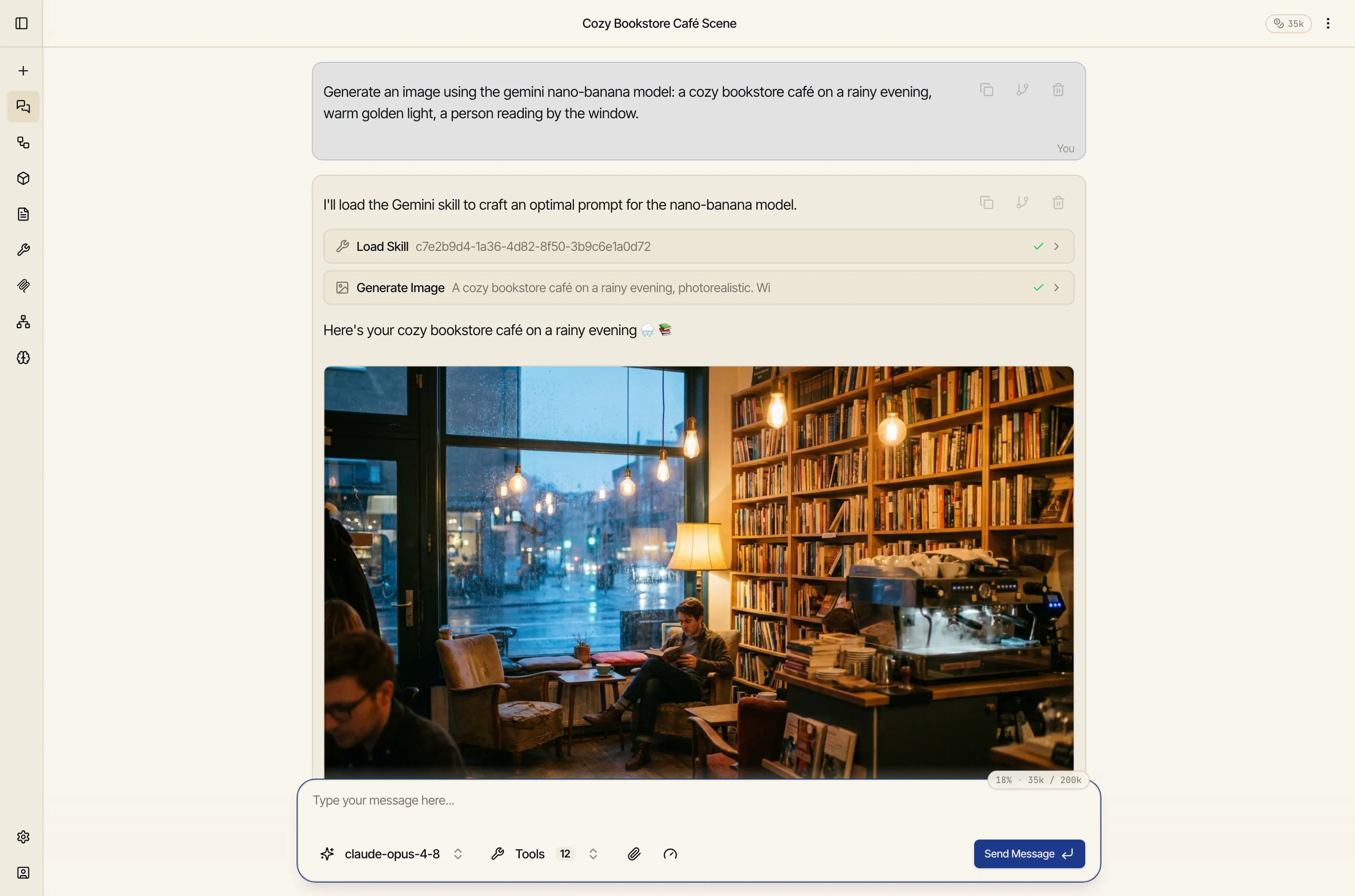
No menus, no separate tool. You write what you see in your head — “generate an image of a red bicycle leaning against a sunlit brick wall” — and the picture comes back in the conversation. From there you can keep iterating in plain language (“make it warmer,” “remove the basket”), refer back to earlier images, or flow a generated image into an artifact or a workflow.
Catalyst doesn’t lock you into one image engine. You enable the models you want in Settings, and the assistant picks the best one for each request — or you can name a specific model right in your message (“…using Ideogram”).
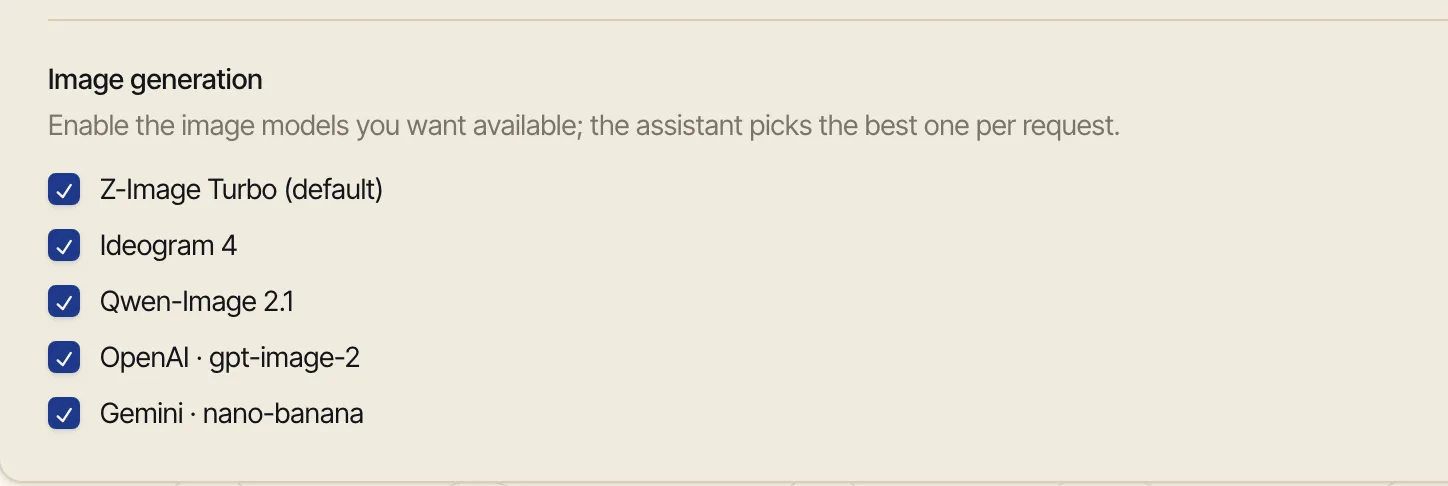
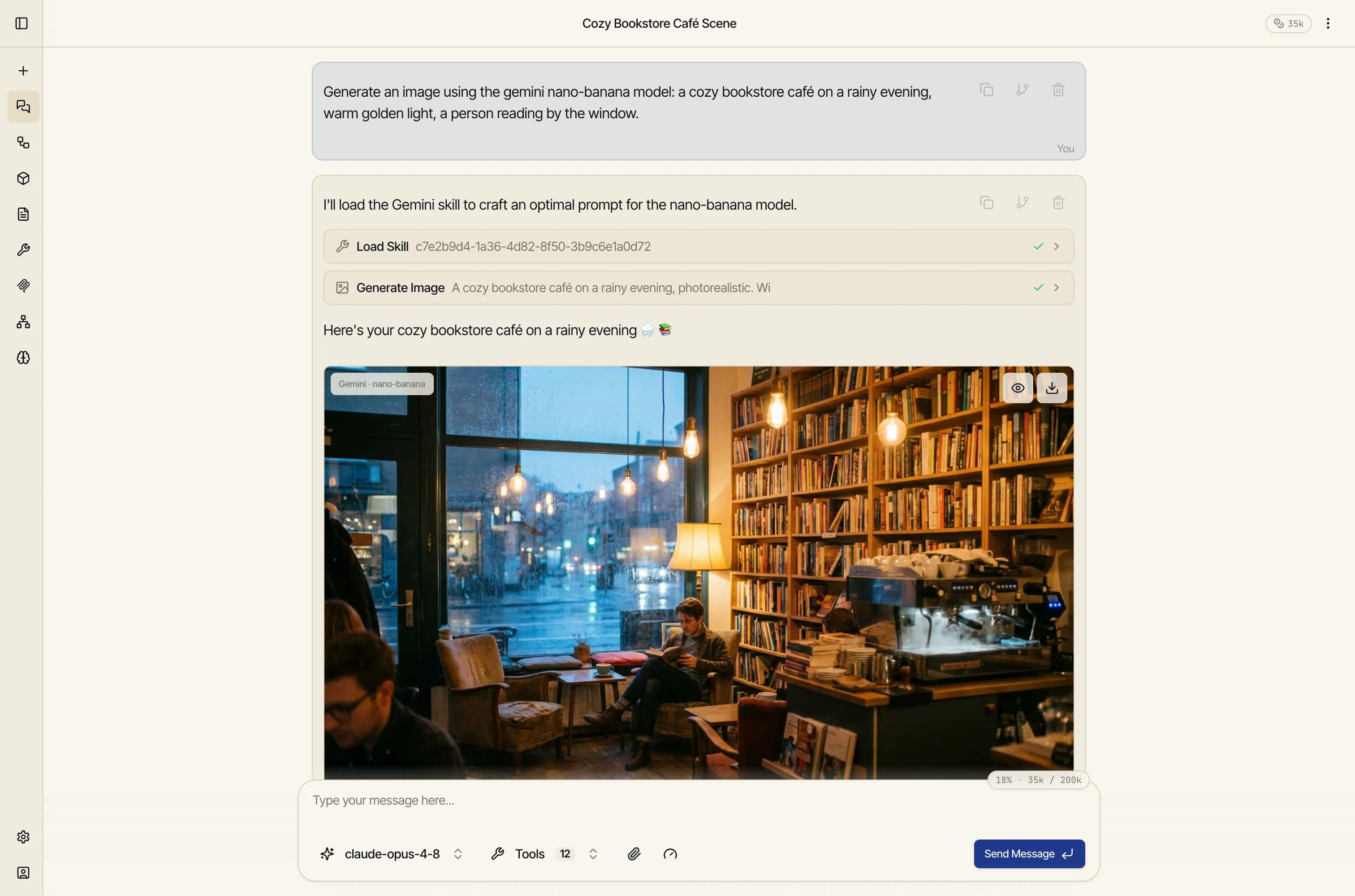
Here’s the same prompt — “cozy bookstore café, rainy evening” — through all five, so you can see how their personalities differ:
Z-Image — fast, free default
A quick, no-cost general-purpose model. The default, and a great first pass for almost anything.
Ideogram 4 — typography & posters
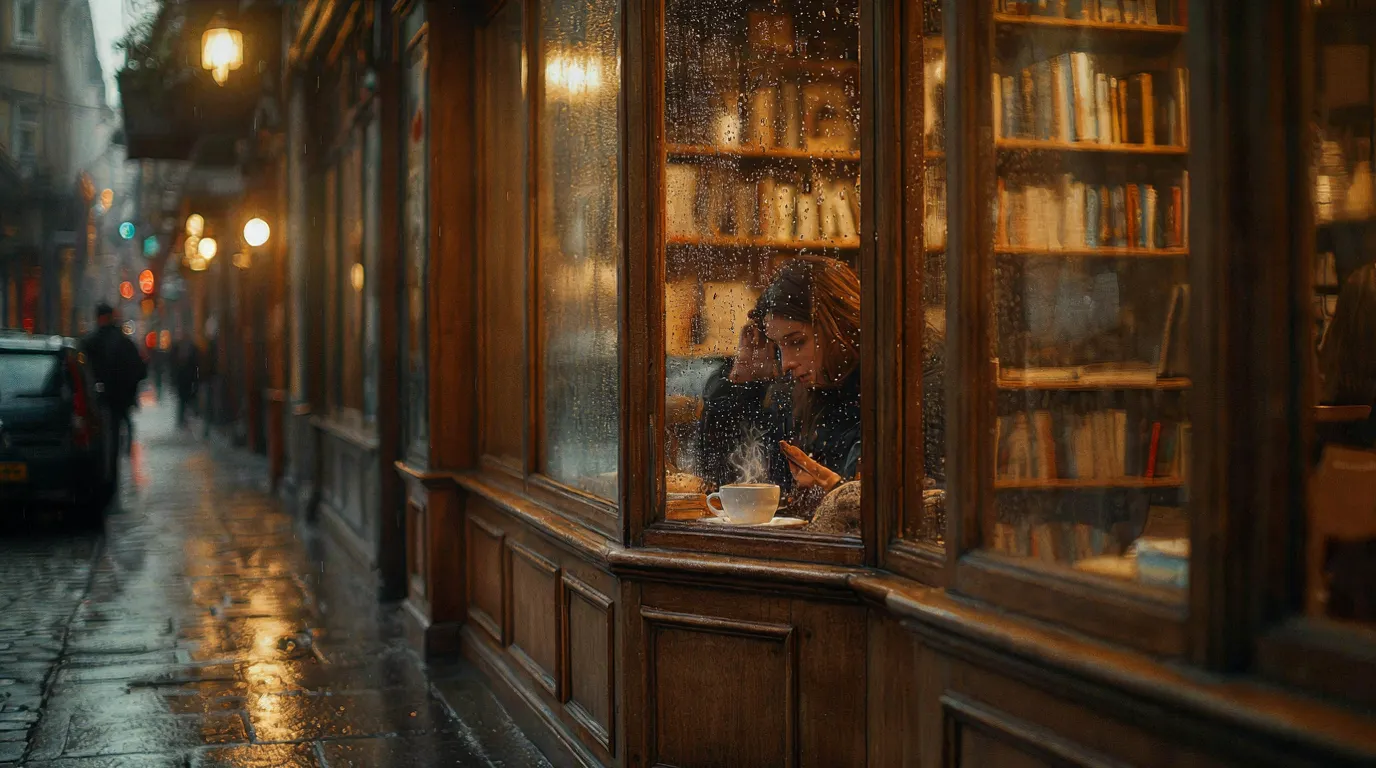
Also free. The typography specialist among the free models — posters, logos, signage, anything with words that need to read cleanly.
Qwen-Image 2.1 — best free all-rounder
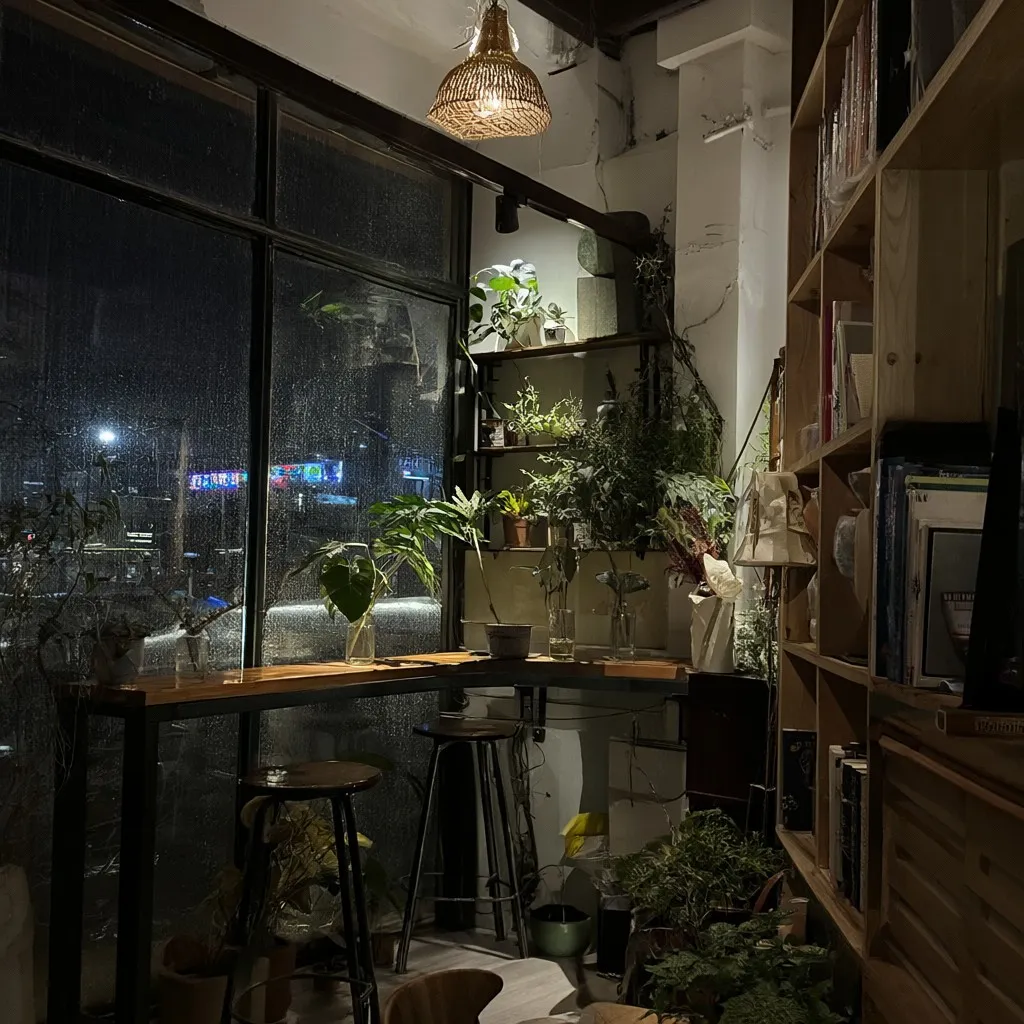
Also free. The highest-fidelity free model: natural, photographic results, accurate short text, transparent backgrounds, and careful single-image edits. Takes about 30 seconds an image, so Z-Image is still the quick draft.
Gemini (nano-banana) — creative & high-fidelity
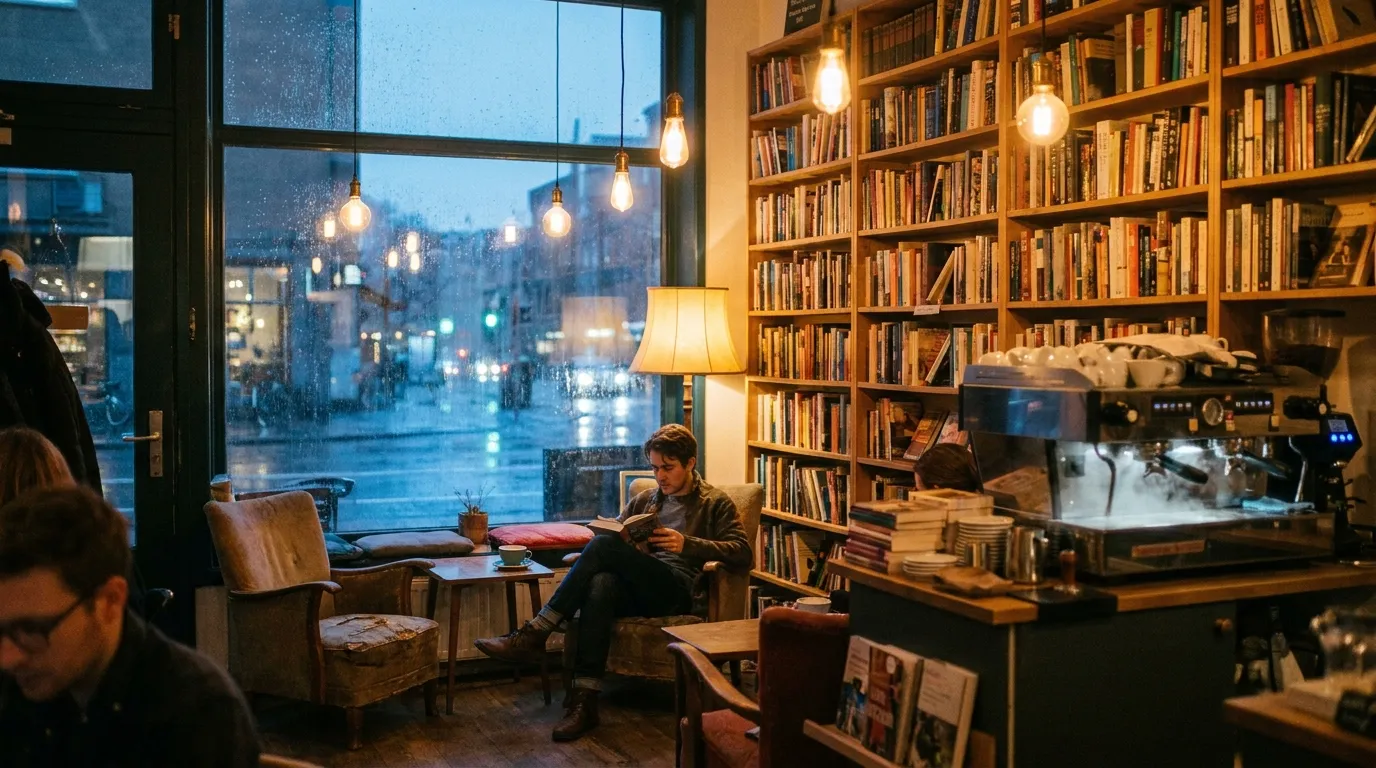
A paid model with strong creative composition, multilingual text, high fidelity, and the multi-image editing powers below.
OpenAI (gpt-image-2) — photoreal & precise
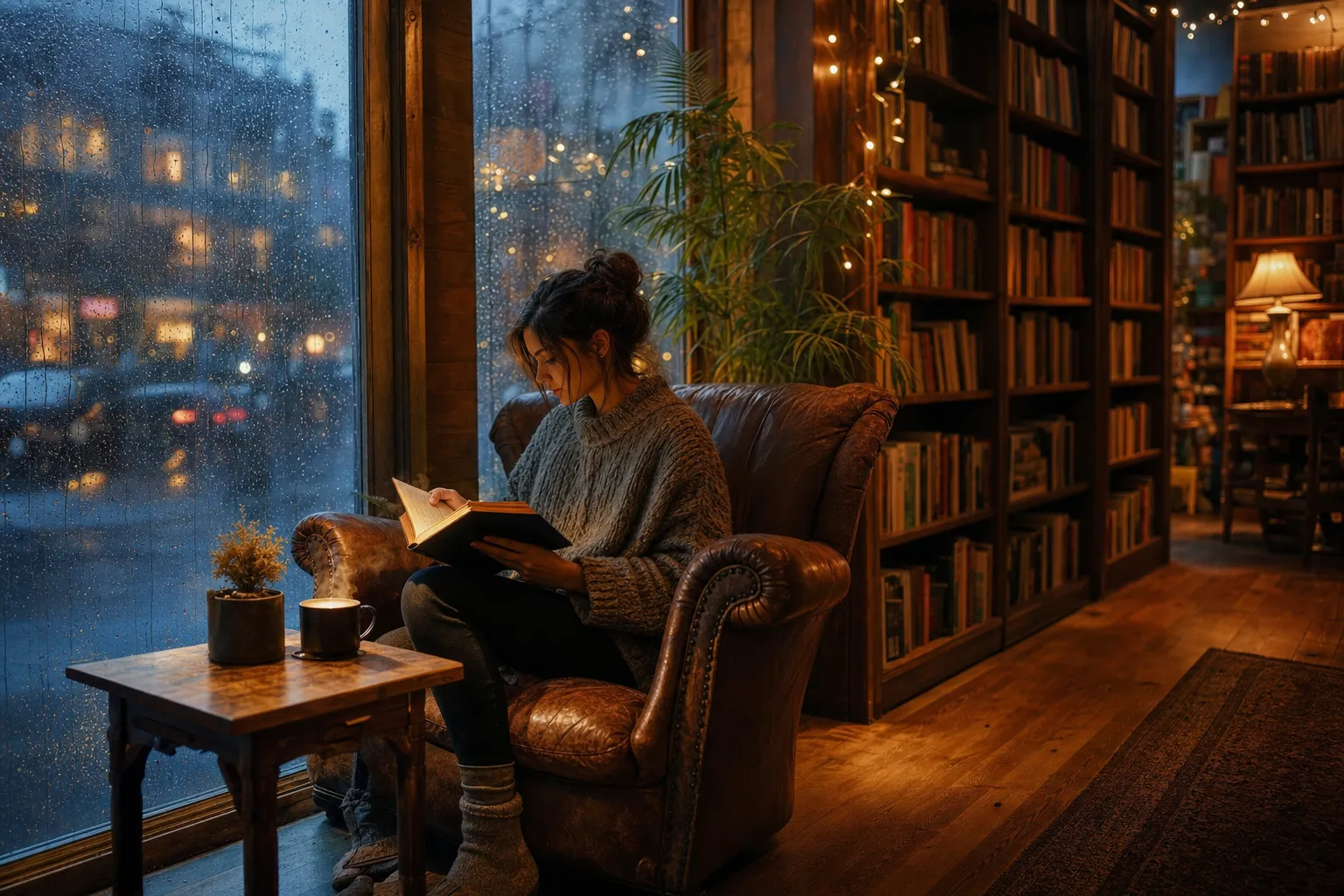
A paid model that leans photorealistic, renders reliable text, and follows detailed instructions closely.
By default images come back square. To change the shape, just say so in your request — Catalyst maps your words to whatever the chosen model supports:
16:9, 9:16, or 21:9 — best with Ideogram 4,
Qwen-Image 2.1 and Gemini.1024x1536 — best with Z-Image, Qwen-Image 2.1 and OpenAI.
Qwen-Image 2.1 goes up to about 2.4 megapixels (1536x1536, 1920x1088).You don’t have to memorize which is which: ask for the shape you want in plain language (“make it a wide 16:9 banner” or “1024x1536, portrait”) and the assistant routes it to a model that can deliver it.
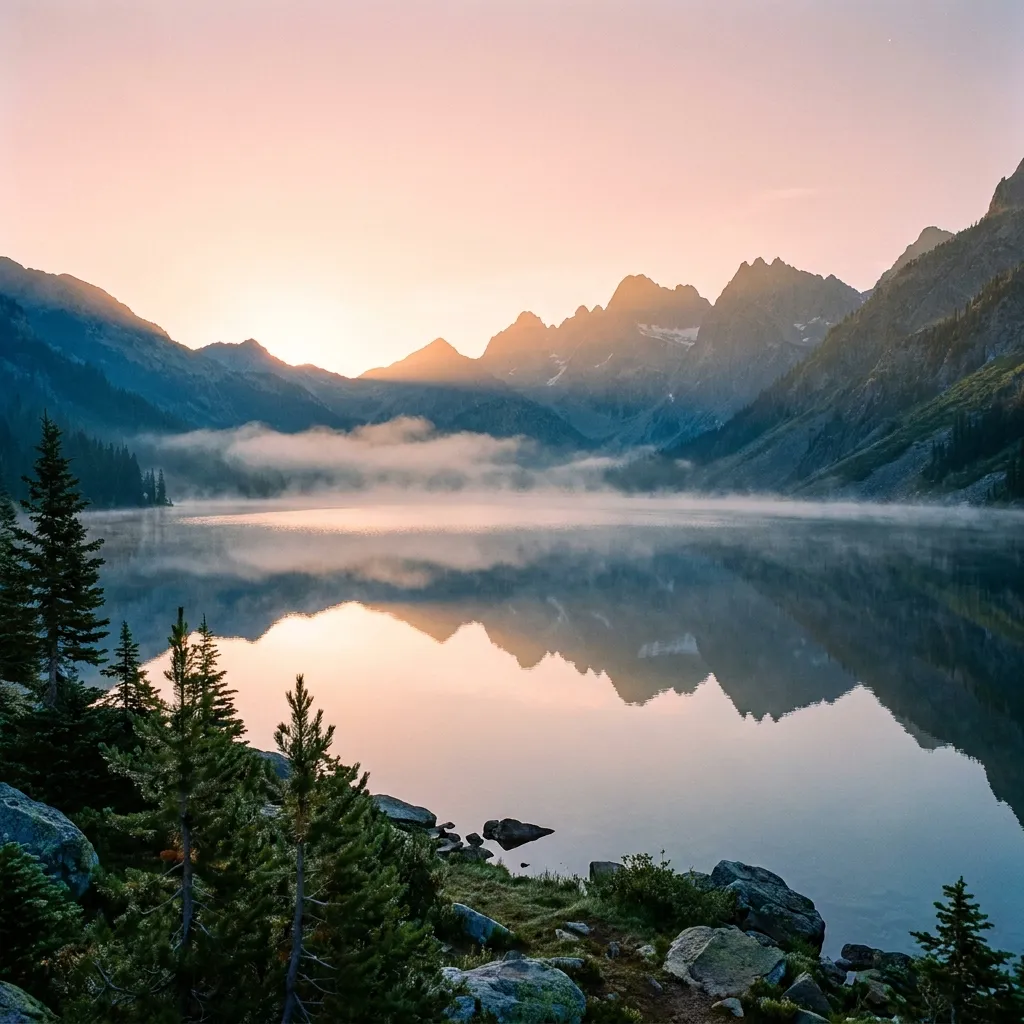
Same prompt — “serene mountain lake at sunrise” — in four shapes via Gemini:
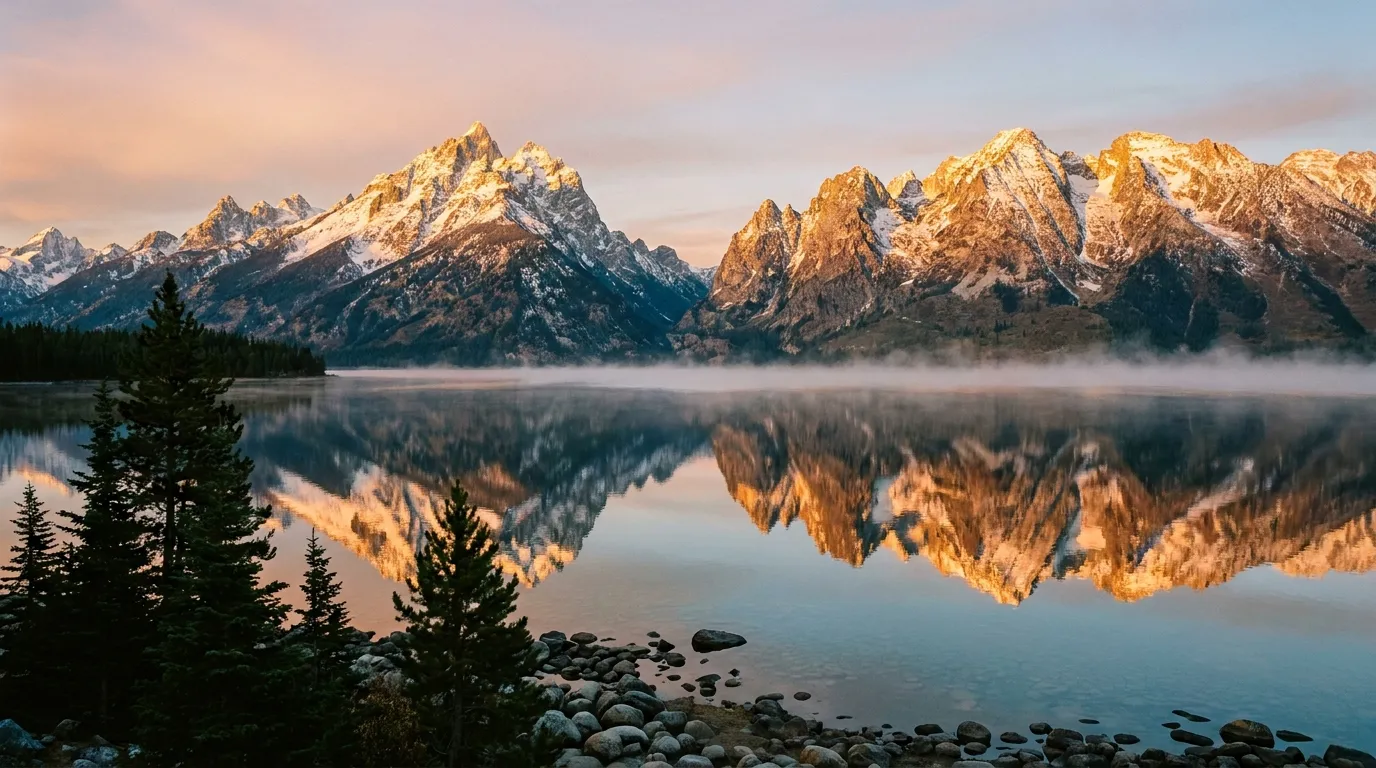
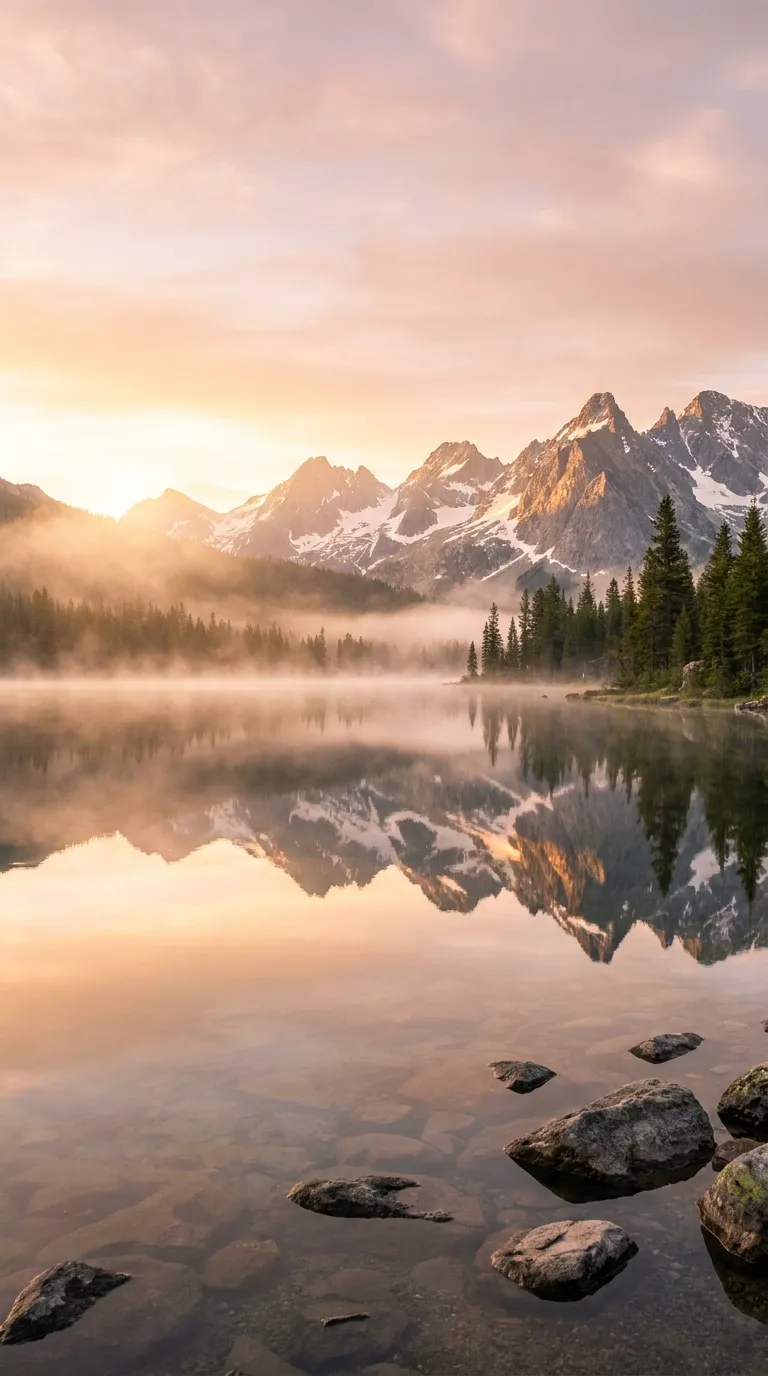
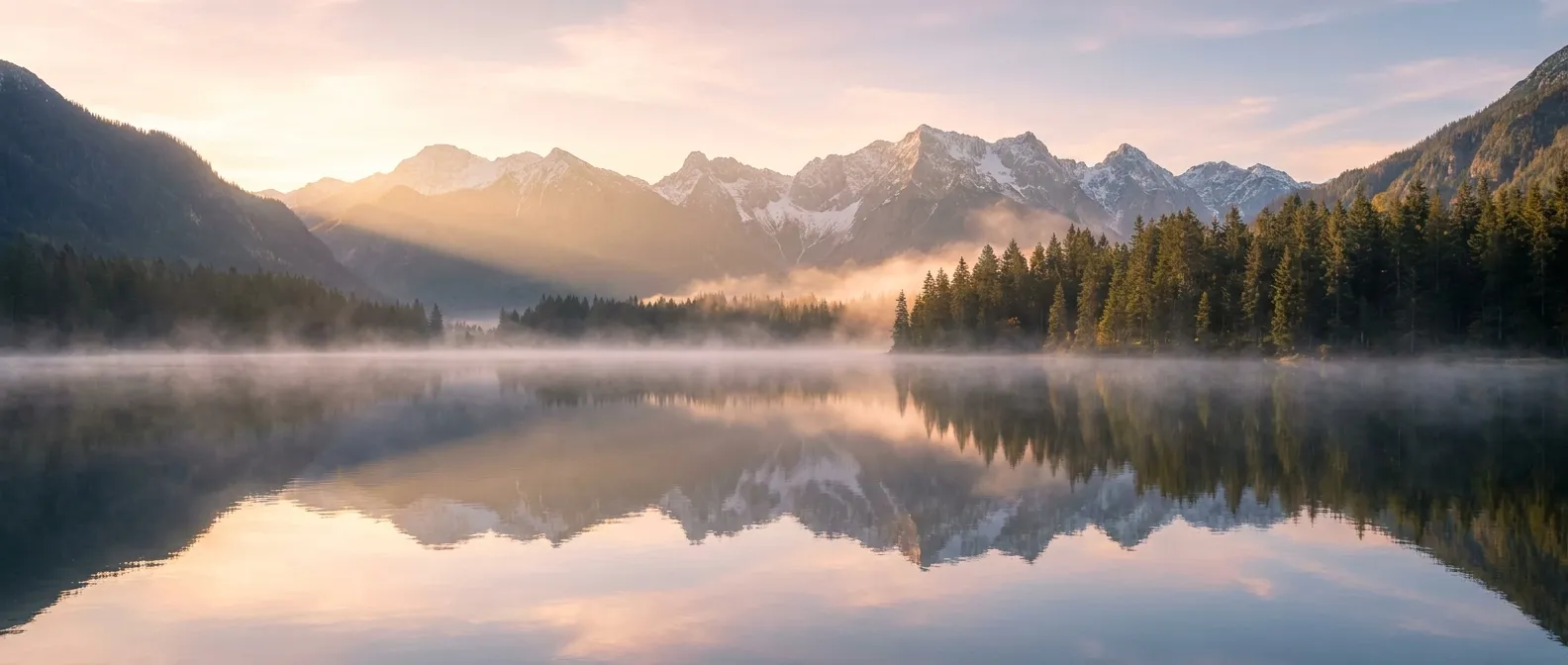
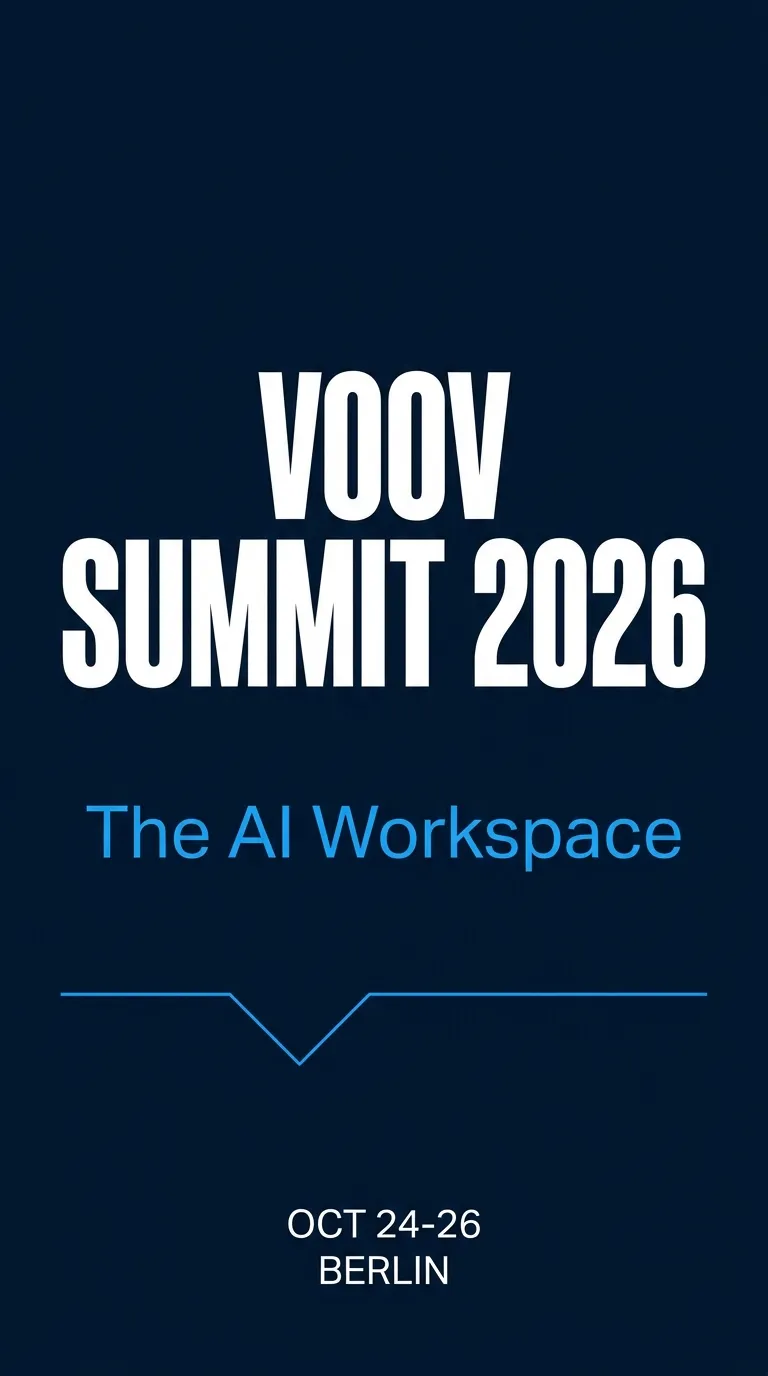
Putting legible words inside a picture — a headline, a logo, a label — is the hardest thing for image models, and where the right choice matters most. Ideogram 4 and Gemini are the strongest here; Qwen-Image 2.1 is reliable for short text like a sign, a label or a title.
The trick: put the exact words in quotes so the model knows precisely what to render — “a conference poster, headline reads ‘VOOV SUMMIT 2026’, subtitle ‘The AI Workspace’”.
Ideogram 4
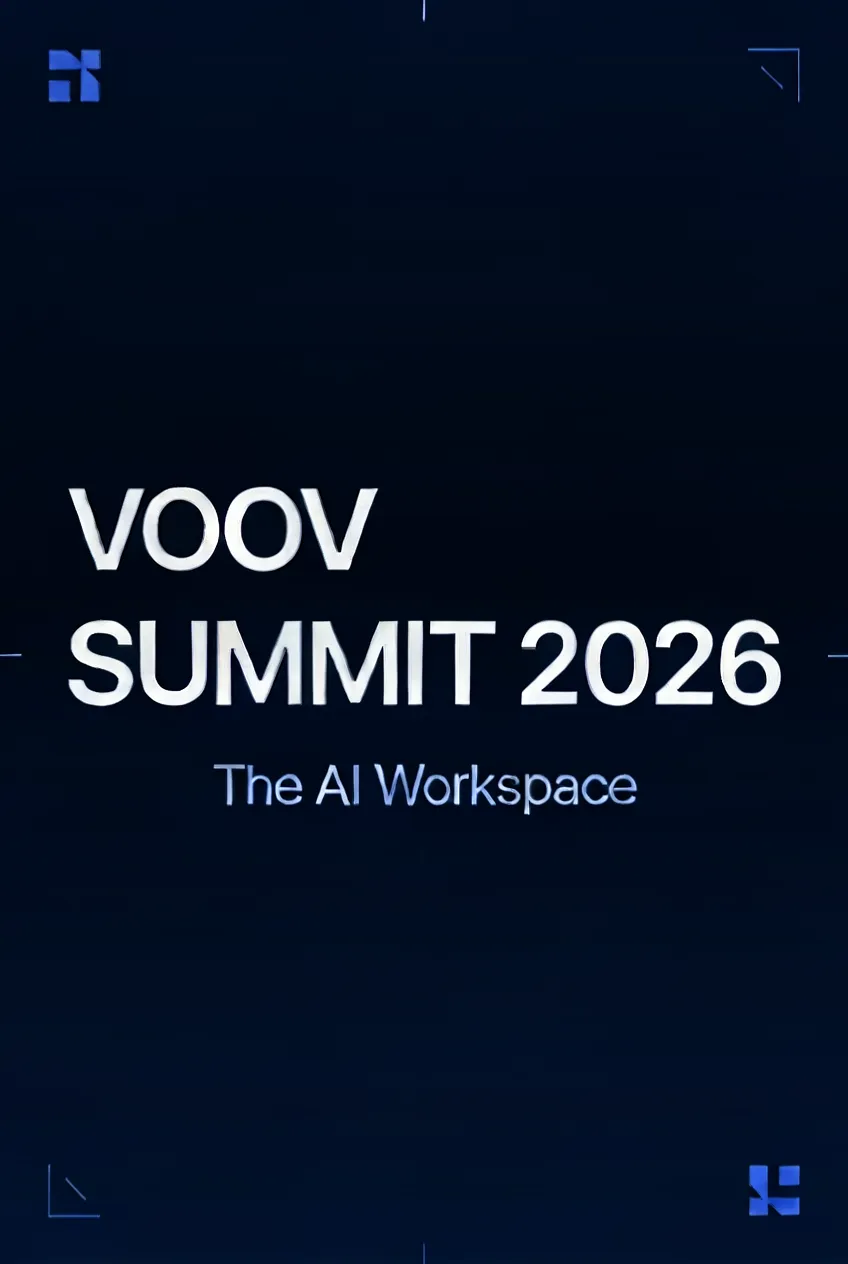
Gemini
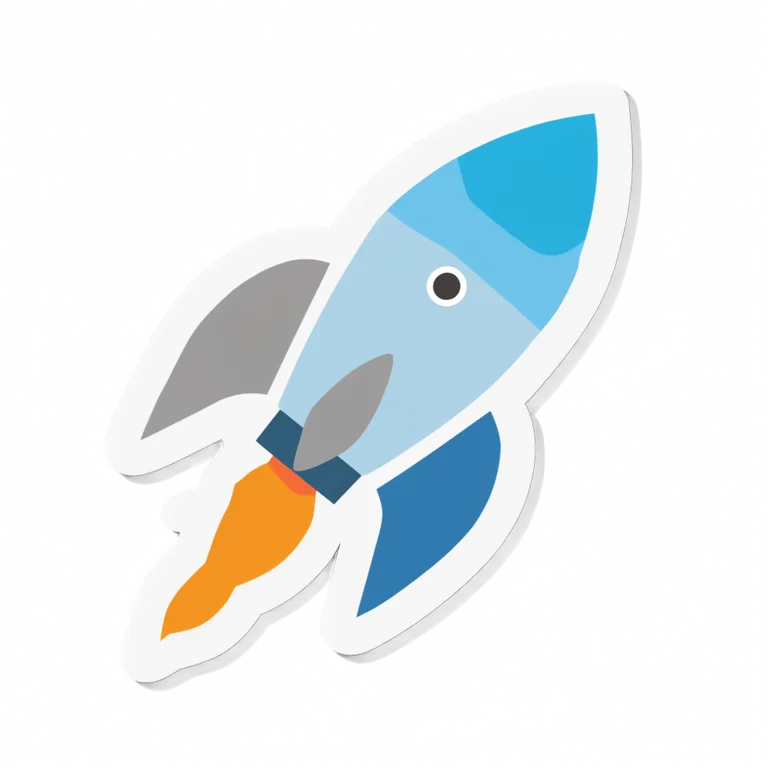
Need a sticker, an icon or a logo you can drop onto any background? Enable Qwen-Image 2.1 and ask for a transparent background — “a cartoon rocket ship sticker with a thick white outline, transparent background”. The result is a PNG with a real alpha channel, so there’s nothing to cut out afterwards.
You don’t have to regenerate from scratch to make a change. Hand Catalyst an existing image — reply with one attached, or just refer to a picture from earlier in the conversation — and say what to change:
Change the background to a beach.
Make it look like a watercolor painting.
Remove the person on the left.
Catalyst automatically picks the best available editor for the job and returns the revised image inline. Keep going with more edits to dial it in.
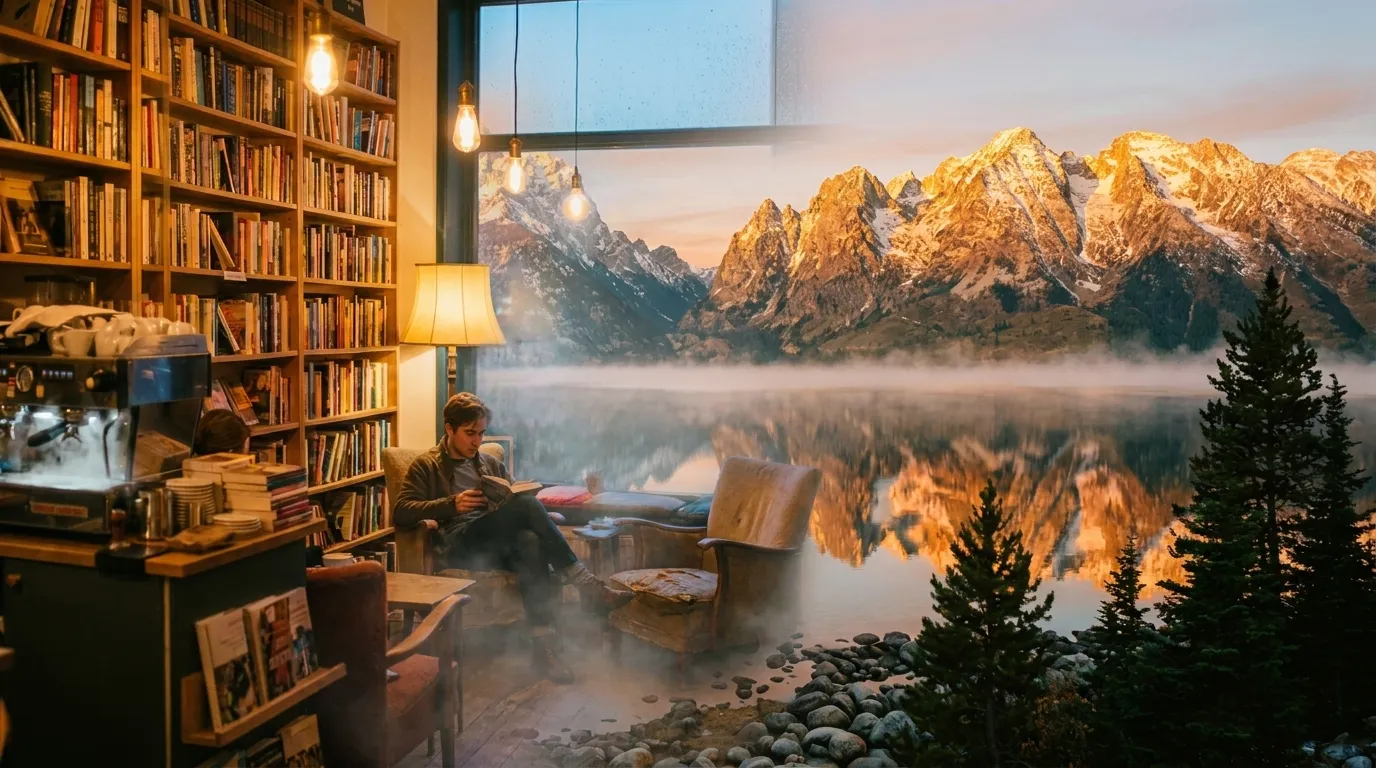
Catalyst can also blend several images into one. Attach two or more pictures and describe how to merge them — this is composition, not a side-by-side collage.
Attach two or more images to your message — for example, the café and the lake from above.
Describe the composition in plain language, giving each image a role:
Combine these: put the café on the left and the lake on the right, as one seamless scene.
Catalyst composes them using Gemini and returns a single new image.
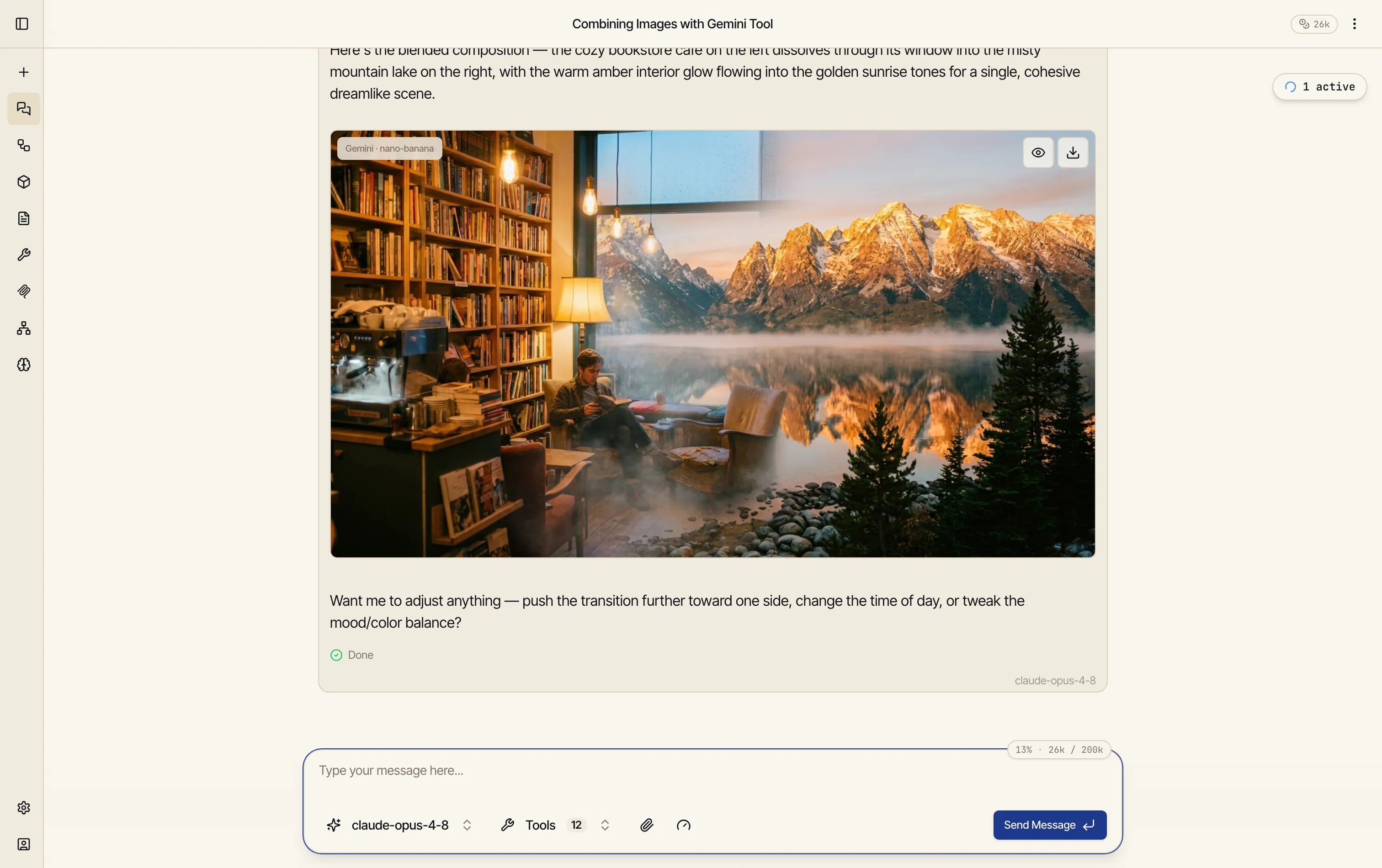
And the blended result — two separate pictures merged into one coherent scene:
A few habits that make a big difference:
Every generated image carries a small panel — hover (or tap) to see which model produced it, and to expand it full-screen or download the file.
Generated images don’t have to stay in the chat. Pull one into an artifact like an HTML gallery, or wire image generation into a workflow — the workflow Image node uses the same engine — to produce a whole batch on a schedule. You can even set a generated image in motion: ask Catalyst to animate it into a short video clip.