

A clear trigger
Describe when to use it (“when asked to write a release note…”) so the model knows when to reach for it.
A skill is packaged know-how for doing one kind of task well — a procedure, a house style, a checklist, the gotchas of a recurring job. You write it once, and the model loads it on demand when a task calls for it, then follows it. Think of skills as expertise the model can reach for, rather than instructions you paste in every time.
Open Skills from the sidebar to manage your own and browse the Public library shared across the workspace.
The difference is when the guidance applies:
So skills are how you give the model deep competence in lots of narrow areas at once — formatting a particular report, running a specific kind of analysis, following your team’s review process — and trust it to pull in the right one at the right moment.
A clear trigger
Describe when to use it (“when asked to write a release note…”) so the model knows when to reach for it.
Concrete steps
The actual procedure — the steps, the format, the rules, the common mistakes to avoid.
Self-contained
Everything needed to do the task well, so loading the skill is enough — no extra context required.
One job
Scoped to a single kind of task. Several focused skills beat one sprawling one.
A skill body isn’t just static text. When the assistant loads a skill, Catalyst renders the body with template variables filled in from your account — your default image model, the providers you’re entitled to, your timezone, today’s date, and more. The result: one skill that adapts per user instead of a hard-coded set of assumptions.
The syntax is Jinja: {{ variable }} inserts a value, and
{% if … %}…{% endif %} / {% for … %} add logic. Anything you don’t recognize
is left untouched, so plain prose keeps working exactly as written.
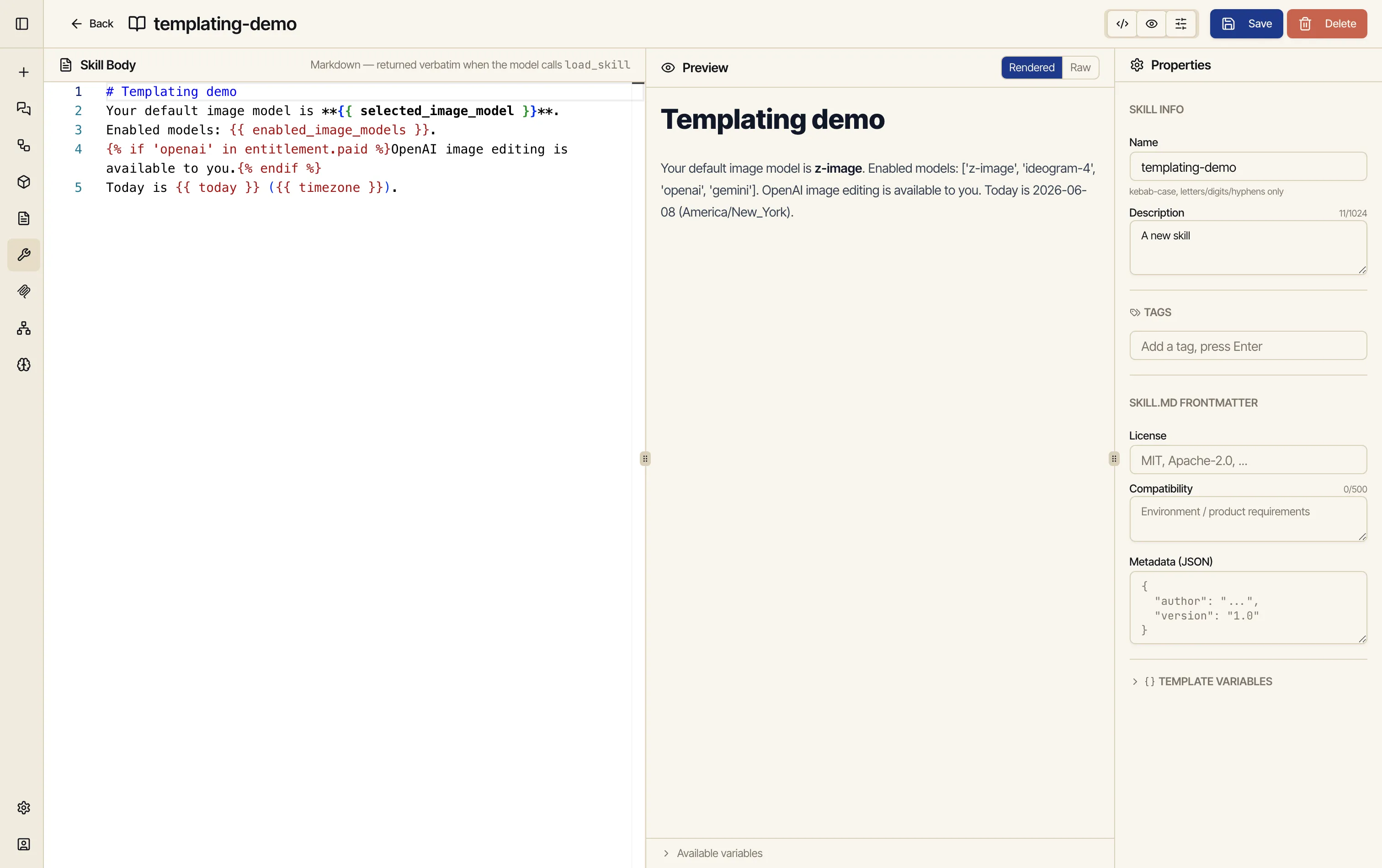
The skill editor’s Preview has a Raw / Rendered toggle. Raw shows your literal source; Rendered shows what the assistant will actually receive, resolved against your live context.
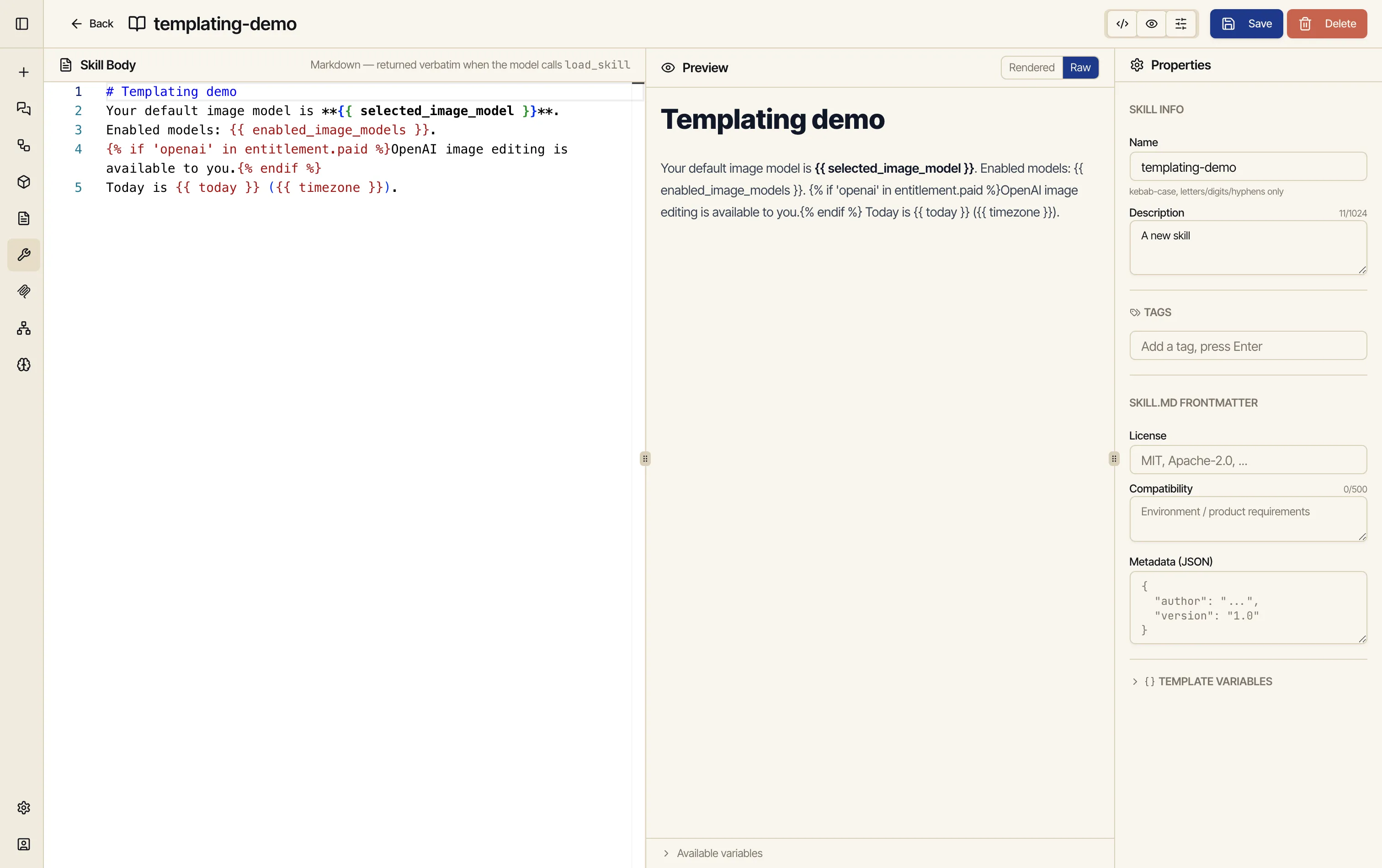
A skill body might look like this:
Your default image model is {{ selected_image_model }}.Today is {{ today }} ({{ timezone }}).
You have these image models enabled:{% for m in enabled_image_models %}- {{ m }}{% endfor %}
{% if 'openai' in entitlement.paid %}Tip: you have OpenAI access — prefer it for text-in-image posters.{% endif %}
On the Rendered tab that fills in with real values: the user’s actual default model, their enabled list, the current date in their timezone, and the OpenAI tip only if their account is entitled to OpenAI. Another user sees a body shaped to their account.
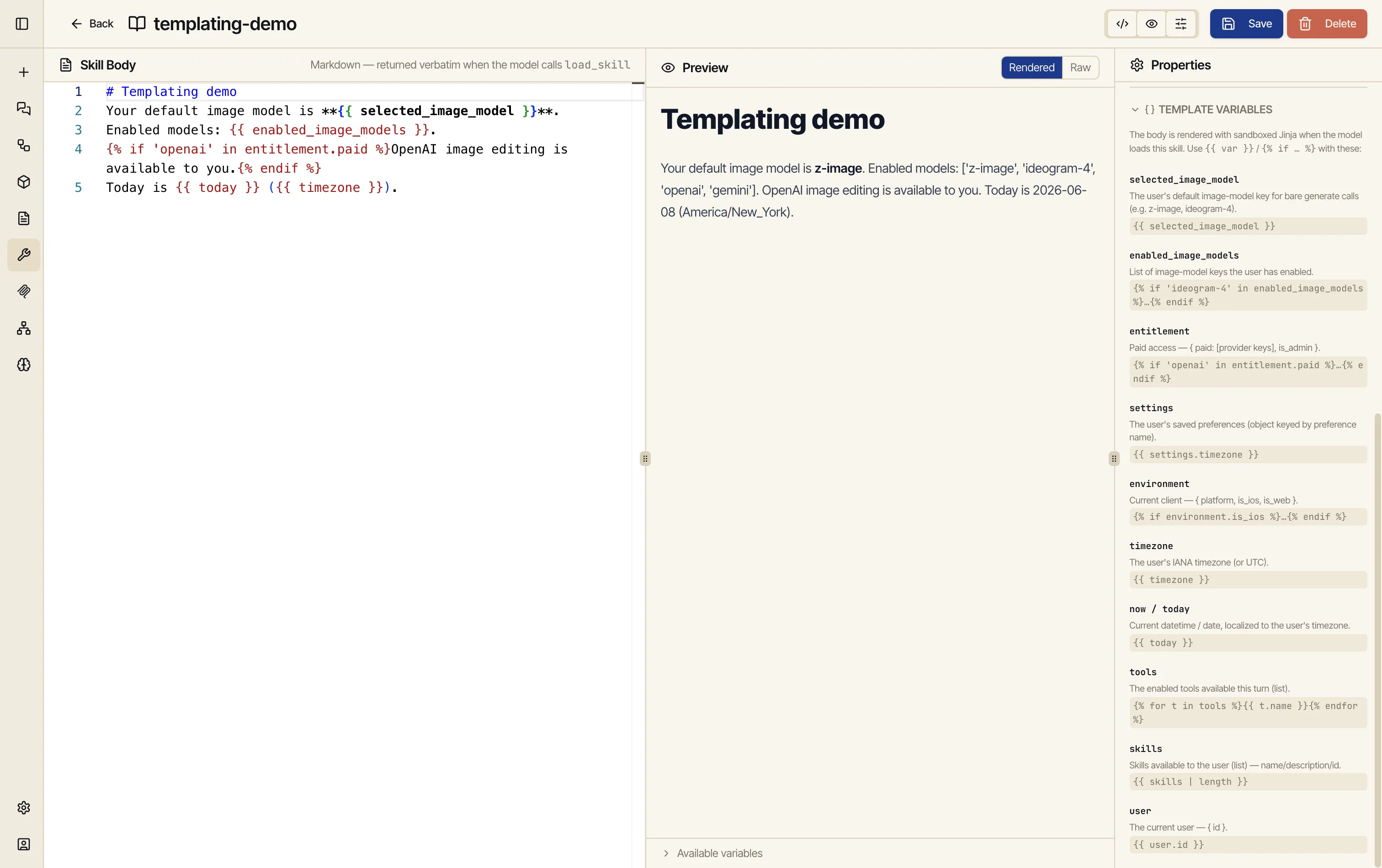
These are the values Catalyst injects when it renders a skill (or a prompt):
selected_image_model — your default image-model key.
Example: {{ selected_image_model }}enabled_image_models — the list of image models you’ve enabled.
Example: {% for m in enabled_image_models %}…{% endfor %}entitlement — paid access, { paid: [provider keys], is_admin }.
Example: {% if 'openai' in entitlement.paid %}…{% endif %}settings — your saved preferences (an object).
Example: {{ settings.timezone }}environment — the current client, { platform, is_ios, is_web }.
Example: {% if environment.is_ios %}…{% endif %}timezone — your IANA timezone.
Example: {{ timezone }}now / today — the current datetime / date, in your timezone.
Example: {{ today }}tools — the tools enabled this turn (a list).
Example: {% for t in tools %}{{ t.name }}{% endfor %}skills — the skills available to you (a list).
Example: {{ skills | length }}user — the current user, { id }.
Example: {{ user.id }}The Properties panel keeps the same reference one click away — a collapsible Template Variables section so you never have to leave the editor to remember a name:
The most useful pattern is showing instructions only when they apply. The real image-author skill does exactly this — it includes provider-specific tips only for providers the user can actually use:
{% if 'openai' in entitlement.paid %}When the user wants crisp text inside an image, use OpenAI's image model.{% endif %}A user without OpenAI access never sees that paragraph, so the skill stays focused and the model isn’t told to reach for something it can’t run.
Add a skill — give it a name, a description of when it should be used, and the instructions themselves.
Import an existing skill to bring one in rather than writing from scratch.
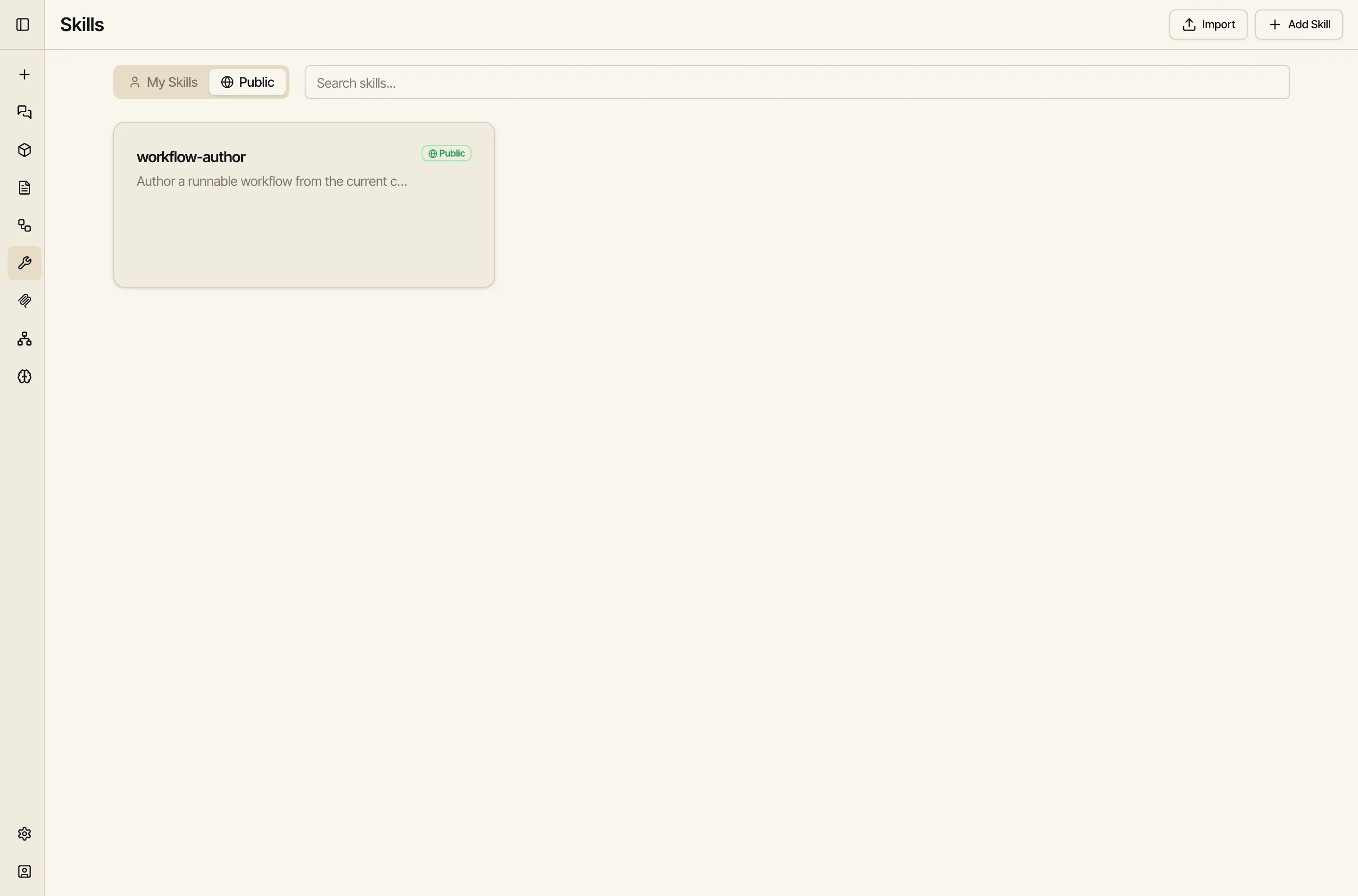
Share it — browse and publish to the Public tab so skills can be reused across the workspace. My Skills holds yours; Public holds the shared library.
Here’s the best proof that skills are powerful — Catalyst uses one to build a core feature
of itself. The public workflow-author skill is what teaches the model to turn a
conversation into a real, runnable workflow. It’s a normal skill, sitting right in the Public
library, that you can open and read:
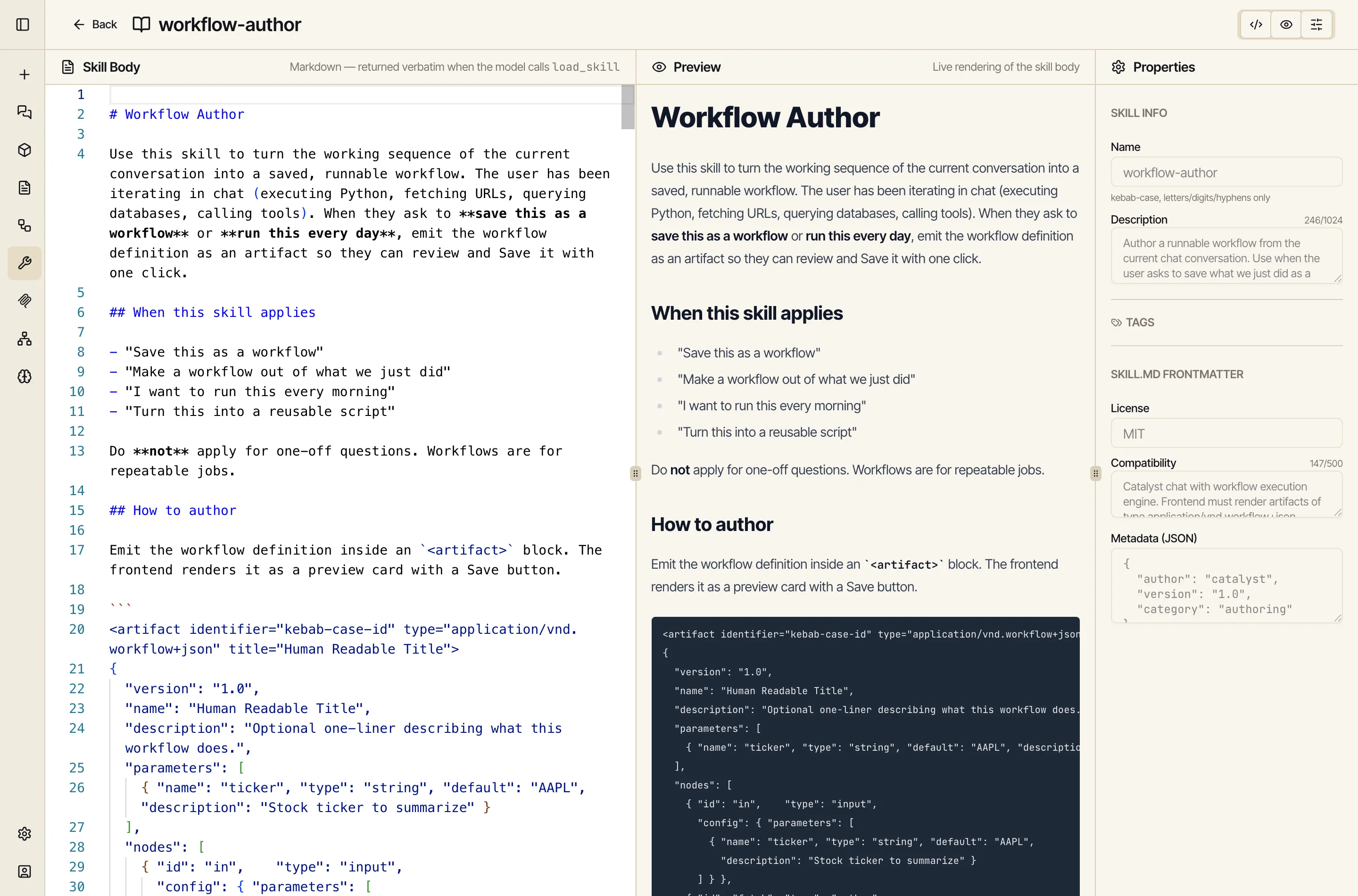
When you ask Catalyst to “make this into a workflow”, the model loads this skill, follows its instructions on which node types exist and how to wire them, and emits a valid workflow artifact — exactly the mechanism behind Promote a chat to a workflow.
Read that again: a headline product feature is just a skill. Nothing about it is special-cased or hard-coded — it’s the same authoring surface, the same load-on-demand mechanism, the same Public library you have. Anything you can teach the model to do well, you can package the same way.
A quick way to choose:
Used together, they let Catalyst behave like it already knows your work: who you are (memory), how this conversation should go (prompt), and how to do the task in front of it (skill).